How do you turn a webinar into LinkedIn clips?
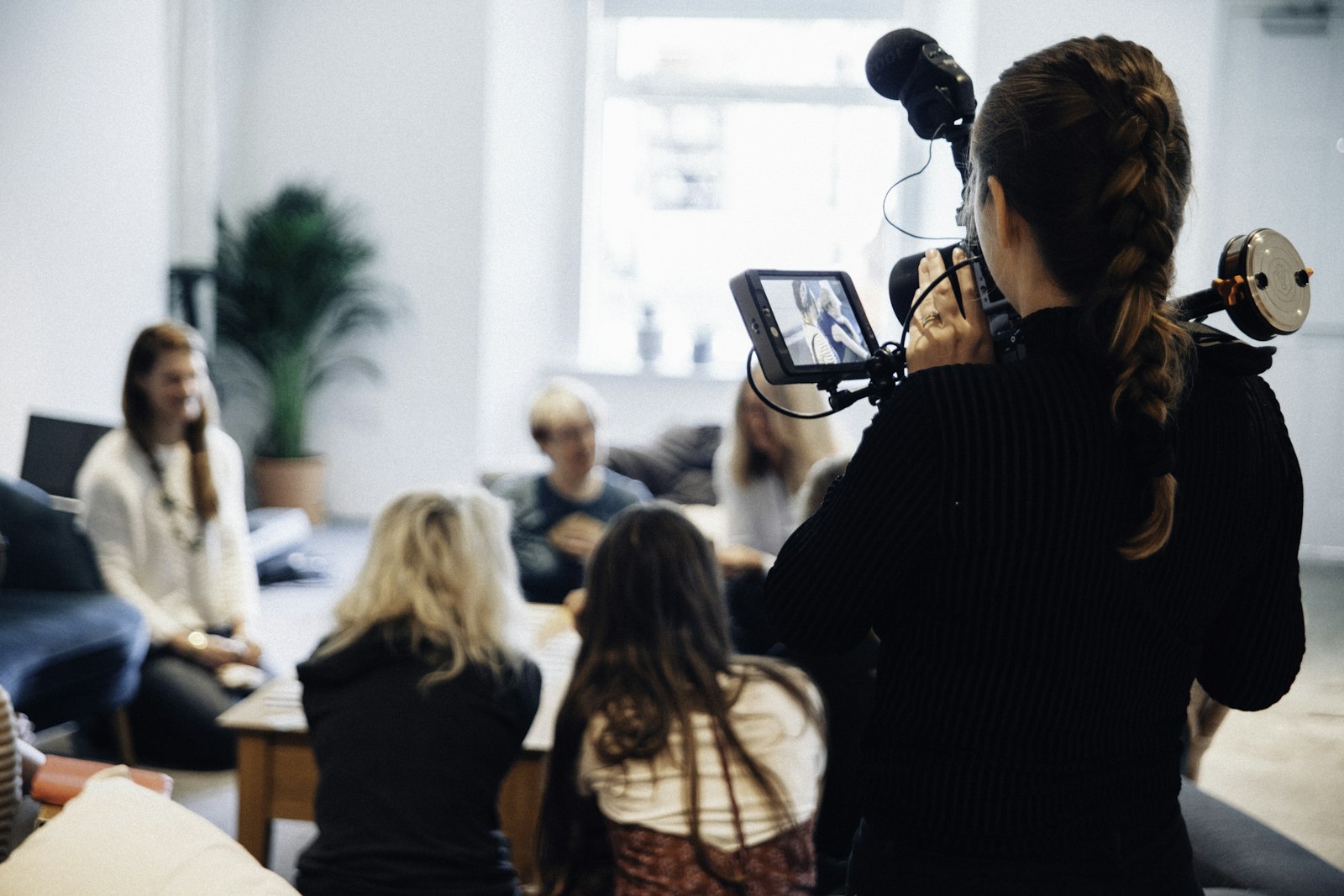
You take the recording, find the three to eight moments where a speaker makes one clear point, cut each into a clip of roughly 30 to 90 seconds, reframe it for the mobile feed, add captions in your branding and a short hook, and post the clips over the following weeks. AI clipping tools now do the finding, cropping and captioning in minutes, so the work that remains is choosing the right moments and writing the post.
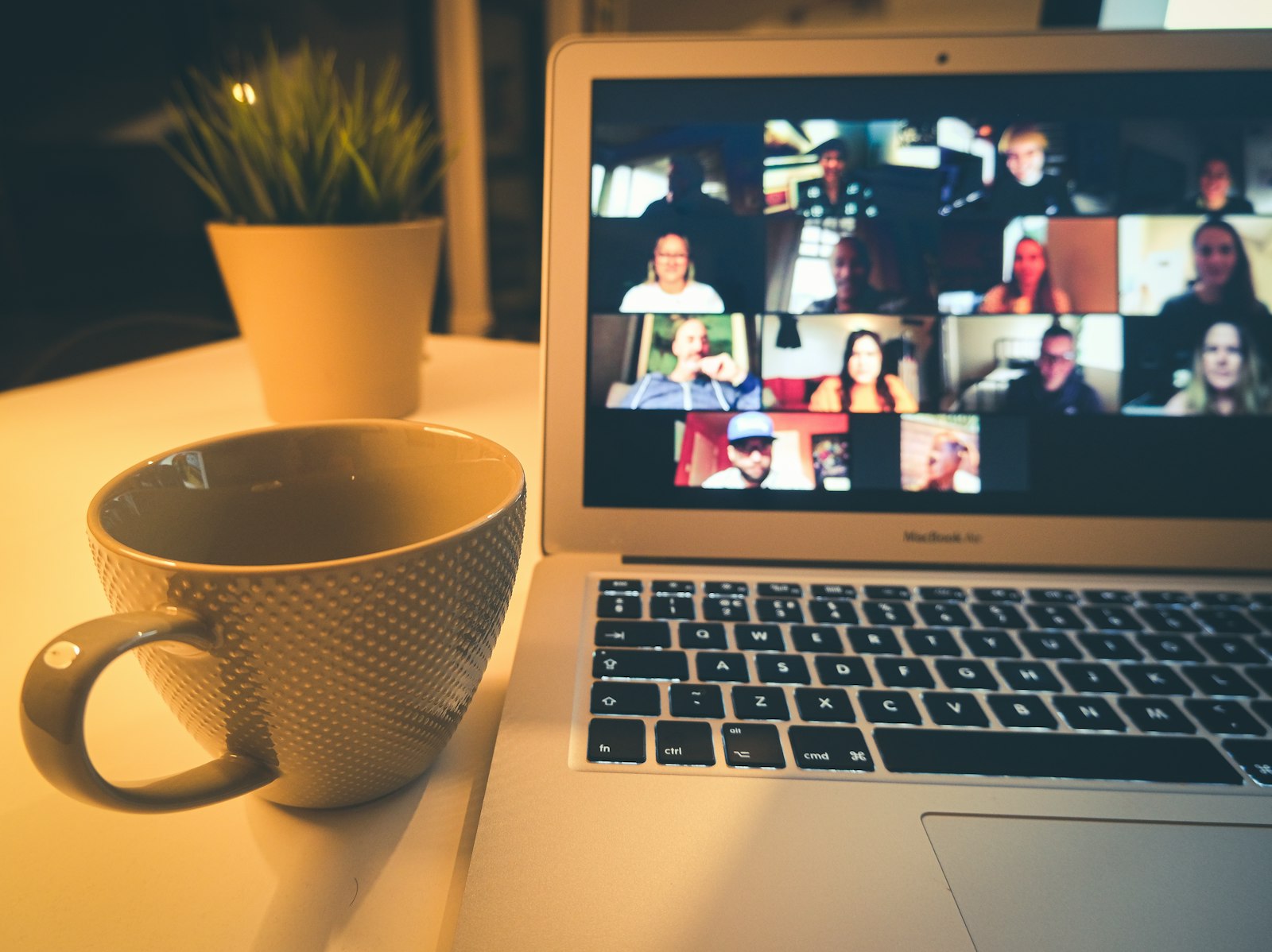
A webinar takes weeks to prepare and is usually watched once, live, by the people who registered. The recording then sits on a server. Clips give it a second life where your buyers and candidates already are. This guide covers which moments work, LinkedIn's technical limits, a seven step workflow and three tools that automate most of it.
Which webinar moments make good clips?
One idea per clip. A clip works when it makes sense without the rest of the webinar.
Answers to audience questions. A real question and a direct answer is the most natural clip format.
A number or a result. "We cut onboarding from six weeks to three" stops the scroll better than a general statement.
A clear opinion. A speaker who takes a position gets comments.
A short story. A customer or employee example told in under a minute.
What are LinkedIn's video specs?
LinkedIn accepts MP4, MOV and most common formats up to 5 GB, from 3 seconds to 15 minutes long when uploaded from a computer, with an aspect ratio between 1:2.4 and 2.4:1 and a resolution from 256x144 to 4096x2304 (LinkedIn Help, 2026). Keep text and logos away from the edges, where the LinkedIn interface can cover them.
For clips, we recommend square (1:1) or vertical (4:5 or 9:16) for the mobile feed, captions burned into the video because many people scroll with the sound off, and a clear first sentence or title card in the first seconds.
Seven steps from webinar to clips
1. Record for clipping. Record each speaker on a separate track and in the highest resolution your webinar tool allows. Clean audio matters more than video quality.
2. Get the transcript. A transcript makes the strongest moments easy to find and gives you the text for captions.
3. Pick the moments. Shortlist three to eight moments using the criteria above. AI tools suggest candidates; a person who attended should make the final choice.
4. Reframe for mobile. Crop to square or vertical and keep the speaker in frame.
5. Add captions and branding. Use your fonts, colours and logo so every clip is recognisably yours, even when it is shared by a speaker or an employee.
6. Write the post. One or two lines that say why the clip matters, a link to the full recording and the speaker's name tagged.
7. Schedule over weeks. Post one clip a week instead of all on one day, and invite speakers and colleagues to share them.
Ask external speakers before you publish clips of them, and agree on this in the speaker briefing.
Which tools turn webinars into clips?
Full disclosure: we are cofenster, so the other tools are described using their own published information.
1. cofenster Milo: on-brand clips for enterprise teams
Milo is one of cofenster's three AI Video Agents. It finds the strongest moments in webinars, town halls and interviews and turns them into short clips for LinkedIn, YouTube Shorts and the intranet, with automatic cropping for each format, animated captions and a video editor. Brand Templates are set up during onboarding, so every clip follows your corporate design. cofenster is ISO/IEC 27001:2022 certified by DQS, GDPR compliant and aligned with the EU AI Act.
2. OpusClip: AI clipping for social media
OpusClip offers AI clipping, AI captioning and AI reframe to turn long footage into short social videos, and supports languages including English and German (OpusClip, 2026). It fits creators and marketing teams that publish across many social channels.
3. Descript: text based editing
Descript edits video by editing the transcript, removes filler words with its AI assistant, turns one video into shorter clips for LinkedIn and other platforms, and shares brand layouts across a team with Brand Studio (Descript, 2026). It fits teams that want detailed editing control.
Not only webinars
The same workflow works for town halls, leadership Q and As and customer interviews. Internal communications teams use it to turn a one hour all hands into three clips for the intranet that employees actually watch.
Key takeaways
One webinar, many clips. Three to eight clips can fill a month of LinkedIn posts.
Pick moments, not minutes. One idea, one answer or one number per clip.
Built for mobile. Square or vertical, captions burned in, a hook in the first seconds.
Brand on every clip. Clips travel further when speakers share them, so your design has to be built in.
See Milo with your own recording
Bring a webinar or town hall recording to a live demo and we will show you the clips Milo makes from it, in your branding.
Information about third party tools comes from each provider's own website and was checked on 24 November 2026.